Create an intelligent WhatsApp chatbot that automatically schedules appointments using Lovable and WhatsAble Notifyer - complete step-by-step guide for 2025
Table of Contents
- Introduction
- What You'll Build
- Prerequisites
- Step 1: Setting Up Your WhatsApp Business Account
- Step 2: Creating Your WhatsAble Account
- Step 3: Building Your AI Agent with Lovable
- Step 4: Connecting WhatsAble to Lovable
- Step 5: Testing Your AI Chatbot
- Step 6: Customizing System Prompts
- Advanced Features and Team Collaboration
- Why Choose This Approach
- Troubleshooting Common Issues
- Next Steps and Enhancements
Introduction
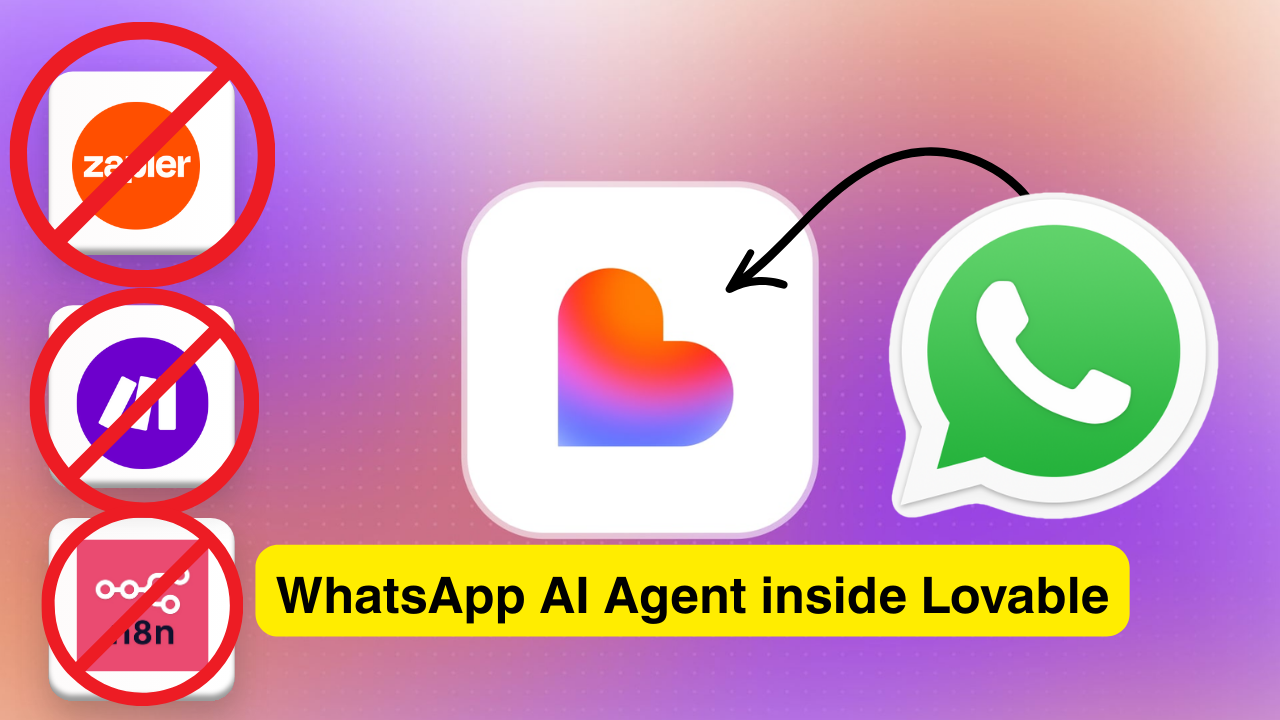
The landscape of business automation is rapidly evolving. Traditional automation tools like Zapier, Make.com, and N8N have been industry standards for over a decade. But what if you could build the same sophisticated AI agents and automations without the complexity of these platforms?
In this comprehensive guide, you'll learn how to build an AI-powered WhatsApp appointment scheduling system that combines the power of Lovable (a vibe coding platform) with WhatsAble's Notifyer system. The best part? You'll achieve professional results with minimal technical complexity.
What Makes This Approach Different?
Instead of spending hours configuring complex automation workflows in traditional tools, you'll:
- Build a complete AI agent in minutes using natural language prompts
- Get a fully functional dashboard for managing contacts and appointments
- Enable team collaboration through WhatsAble's chat interface
- Customize AI behavior without touching complicated workflow builders
What You'll Build
By the end of this tutorial, you'll have created:
1. An Intelligent WhatsApp Chatbot that:
- Automatically responds to incoming messages
- Understands customer intent and context
- Schedules appointments based on your availability
- Confirms bookings and manages the entire conversation flow
2. A Professional Dashboard featuring:
- Real-time contact management
- Appointments overview with status tracking
- Conversation history
- Customizable bot settings and system prompts
- Working hours configuration
3. Team Collaboration Features including:
- Shared WhatsApp Business account access
- AI/Human agent toggle for manual intervention
- Multi-user chat interface (web and mobile apps)
- Message history and conversation management
🎥 Prefer video? Watch the Complete step-by-step Video Tutorial 👇
See the entire process in action - from setup to your first automated appointment booking in under 15 minutes!
Prerequisites
Before starting, you'll need:
Required Accounts
- WhatsApp Business Account - Get started at business.whatsapp.com
- WhatsAble Account - Sign up for Notifyer system access
- Lovable Account - For building your AI agent and dashboard
Technical Requirements
- WhatsApp Business API access (handled automatically by WhatsAble)
- Basic understanding of prompts and AI interactions
- No coding knowledge required!
Time Investment
- Initial setup: 20-30 minutes
- Customization and testing: 15-20 minutes
- Total: Less than 1 hour to a fully functional system
Step 1: Setting Up Your WhatsApp Business Account {#step-1-setting-up-whatsapp-business}
WhatsApp Business API allows automated messaging and chatbot integration for scalable customer communication.
Quick Setup:
- Visit business.whatsapp.com and click "Get Started"
- Choose Cloud API (recommended) or On-Premises API
- Verify your business information and phone number
- Complete Meta's business verification process
Tip: Keep your login credentials ready for the WhatsAble connection in the next step.
Step 2: Creating Your WhatsAble Account {#step-2-creating-whatsable-account}
WhatsAble's Notifyer system simplifies WhatsApp Business API integration, eliminating complex Meta platform configurations.
Why Notifyer?
- No complicated Meta app setup required
- All message types supported (text, images, audio, files)
- Built-in team collaboration tools
- Web & mobile apps included
- AI/Human agent toggle for flexible responses
Setup Process:
- Sign up at whatsable.app
- Access your dashboard
- Click "Connect WhatsApp Business Account"
- Authorize your business number in the popup
- Confirm connection
Note Your API Key: You'll find this in Settings → Developer → API Keys. Save it for Step 4.
Step 3: Building Your AI Agent with Lovable {#step-3-building-ai-agent-lovable}
Lovable is a vibe coding platform that generates complete applications from natural language prompts. Describe what you want, and Lovable builds it.
Getting Started:
- Log in to your Lovable account
- Click "Start New Project"
- Paste your project prompt (see below)
- Wait 5-10 minutes for Lovable to build your system
Example Prompt Structure:
Build an AI WhatsApp appointment scheduler with dashboard.Features needed:- Database for contacts, appointments, conversations- AI chatbot using Google Gemini- Dashboard showing contacts and appointments- Bot settings page with editable system prompts- Working hours: Mon-Fri, 9 AM - 5 PM- 1-hour appointment slotsIntegrations:- WhatsAble API for messaging- Webhook to receive incoming messages- Auto-respond to booking requestsProvide Secrets When Prompted:
Lovable will ask for:
- WhatsAble API Key (from your WhatsAble dashboard)
- WhatsAble Base URL (typically:
https://api.whatsable.app/v1)
That's it! Lovable creates your complete system including database, AI logic, and dashboard UI.
Step 4: Connecting WhatsAble to Lovable {#step-4-connecting-systems}
For your AI to work, both systems must communicate:
- Lovable → WhatsAble: Sending responses (handled by API key ✓)
- WhatsAble → Lovable: Receiving messages (needs webhook)
Setting Up the Webhook:
In Lovable:
- Go to "Edge Functions" section
- Find
whatsable-incomingfunction - Copy the webhook URL
In WhatsAble:
- Open dashboard → Settings → Developer → Webhooks
- Click "Add New Webhook"
- Paste your Lovable webhook URL
- Save and ensure it's "Active"
Done! The systems are now connected.
Step 5: Testing Your AI Chatbot {#step-5-testing-chatbot}
Important First: In WhatsAble, set response mode to "AI Assistant" (not "Human Agent").
Initial Test:
- Send a message from your personal WhatsApp to your business number:
Hi - You should receive an automated reply:
Hello! How can I help you today? - Check your Lovable dashboard → Contacts tab. Your test contact should appear.
Test Appointment Booking:
You: Can I schedule an appointment?Bot: Sure! When works for you? Here are some available times: - Tomorrow at 10 AM - Tomorrow at 2 PM - Friday at 11 AMYou: Tomorrow at 10 AM pleaseBot: Perfect! Appointment confirmed for tomorrow at 10:00 AM.Verify in Dashboard:
- Go to Appointments tab
- Your booking should appear with status "Confirmed" or "Pending"
Step 6: Customizing System Prompts {#step-6-customizing-prompts}
This is where the magic happens. Unlike traditional automation tools, you modify AI behavior directly in your dashboard.
Accessing Settings:
Go to your Lovable dashboard → "Bot Settings"
Example Customizations:
Add rules to control bot behavior:
Rules:- Never propose more than 3 time slots- Always use friendly, casual tone- Confirm before bookingChange Language:
- Respond in SpanishBusiness Rules:
- Mention 24-hour cancellation policy- Ask if this is first visit- Maximum 2 appointments per weekTesting Changes:
- Edit system prompt
- Save
- Send new WhatsApp message
- AI instantly follows new rules
No deployment, no workflow editing - just save and test!
Advanced Features and Team Collaboration {#advanced-features}
Why Choose Notifyer by WhatsAble?
Team Collaboration:
- Give your entire team access to the same WhatsApp Business account
- No need to share phone numbers or credentials
- Web app + mobile apps for on-the-go access
Bulk Messaging:
- Send announcements to all contacts at once
- Create message templates for common responses
AI/Human Toggle:
- Let AI handle routine questions
- Switch to human agent for complex issues
- Click one button to take over any conversation
How It Works:
- Invite Team: Add members via email in WhatsAble dashboard
- AI Mode (Default): Bot handles all conversations automatically
- Human Mode: Click "Human Agent" to manually respond
- Monitor Everything: All team members see conversation history in real-time
Why Choose This Approach {#why-choose-approach}
Comparing to Traditional Automation Tools
| Feature | Traditional Tools (Make/N8N) | Lovable + WhatsAble |
|---|---|---|
| Setup Time | Hours to days | 30 minutes |
| Coding Required | API knowledge needed | Natural language prompts |
| Dashboard | Build separately | Included automatically |
| Modifications | Edit workflows, redeploy | Edit in app, instant |
| Team Collaboration | Limited | Built-in with WhatsAble |
| Cost | Multiple tool subscriptions | Single platform |
| Scalability | Manual workflow expansion | Prompt-based growth |
When This Approach Excels
Perfect For:
- Small to Medium Businesses: Quick deployment without technical team
- Appointment-Based Services: Salons, clinics, consulting, coaching
- Customer Support Teams: Need both AI and human agent capabilities
- Agencies Building for Clients: Rapid deployment, easy customization
- Teams Without Developers: No coding knowledge required
Use Cases:
- Medical appointment scheduling
- Sales consultation booking
- Service provider calendars
- Customer support automation
- Lead qualification and routing
- Event registration
Long-Term Benefits
- Scalability: As your business grows, prompt Lovable to add features
- Flexibility: Change AI behavior without technical knowledge
- Team Enablement: Non-technical team members can manage the system
- Integration Ready: Connect to Google Calendar, CRMs, or other tools via prompts
- Cost Effective: One platform instead of multiple automation tools
Troubleshooting Common Issues {#troubleshooting}
Issue 1: AI Not Responding
Symptoms: You send a message but receive no automated reply
Solutions:
- Check WhatsAble Response Mode:
- Verify Webhook Connection:
- Check API Keys:
Issue 2: Appointments Not Saving
Symptoms: AI schedules appointment but doesn't appear in dashboard
Solutions:
- Database Connection: Verify Lovable database is properly configured
- Refresh Dashboard: Hard refresh (Ctrl+F5 or Cmd+Shift+R)
- Check Console: Open browser developer tools for error messages
- Review AI Response: Did AI actually confirm the booking?
Issue 3: Wrong Time Zones
Symptoms: Appointment times don't match expected timezone
Solutions:
- Update System Prompt: Specify timezone explicitly
All times should be in Eastern Standard Time (EST)When proposing appointments, always specify timezone - Check Working Hours: Verify schedule configuration in Bot Settings
Issue 4: Spanish/Language Responses Not Working
Symptoms: System prompt specifies Spanish but AI responds in English
Solutions:
- Clear Rule: Make language instruction very explicit:
CRITICAL: Always respond in SpanishNever use English in responses - Test Fresh Conversation: Start new conversation to apply new rules
- Check Prompt Location: Ensure rule is in System Prompt section, not personality
Issue 5: Webhook Not Receiving Messages
Symptoms: No incoming messages detected by Lovable
Solutions:
- URL Format: Ensure webhook URL includes full path with
/functions/ - No www: Remove "www." if present in URL
- HTTPS Required: Webhook must use HTTPS protocol
- Test Webhook: Use WhatsAble's webhook testing feature
Getting Help
If you encounter issues not covered here:
- Contact Support: Reach out to our team at team@whatsable.app
- Check API Status: Verify WhatsAble API status page
- Lovable Community: Post in Lovable's support forums
- Documentation: Review WhatsAble API documentation
Next Steps and Enhancements {#next-steps}
Quick Improvements
Google Calendar Sync:
Prompt: "Add Google Calendar integration. When appointment confirmed, create calendar event with customer details."Email Notifications:
Prompt: "Send email to team@whatsable.app when new appointment booked. Include customer name, phone, and appointment time."Appointment Reminders:
Prompt: "Send WhatsApp reminder 24 hours before appointment. Include cancel/reschedule option."Scale Your System
Multi-Location:
Prompt: "Add location selection. Show availability per location. Include address in confirmation."Payment Integration:
Prompt: "Add Stripe payment. Request deposit before confirming. Send receipt via WhatsApp."That's it! Just describe what you want, and Lovable builds it.
Conclusion
You've just built a sophisticated AI-powered WhatsApp appointment scheduling system in under an hour - something that would traditionally take days or weeks with conventional automation tools.
What You've Accomplished
✅ Connected your WhatsApp Business account to enterprise-grade automation
✅ Created an intelligent AI agent that understands context and schedules appointments
✅ Built a professional dashboard for managing contacts and bookings
✅ Enabled team collaboration with AI/human agent switching
✅ Implemented customizable system prompts for easy behavior modifications
The Future of Business Automation
This tutorial demonstrates a fundamental shift in how we build automation:
- From complex workflow builders TO natural language prompts
- From technical requirements TO business logic descriptions
- From hours of configuration TO minutes of instruction
- From developer-dependent TO team-accessible
Tools like Lovable and platforms like WhatsAble are making enterprise-grade automation accessible to everyone, not just technical teams.
Take Action Today
Ready to transform your customer communication?
- Sign up for WhatsAble Notifyer to connect your WhatsApp Business account
- Create your Lovable account and start building your AI agent
- Follow this tutorial and have your system running in 30 minutes
- Need help? Contact our team at team@whatsable.app
Join the Conversation
Have questions about building AI agents? Want to share your implementation? Reach out to our team - we're here to help you succeed.
Start automating smarter today with WhatsAble Notifyer and Lovable! 🚀
Frequently Asked Questions
Q: Do I need coding experience?
A: No! This entire system is built using natural language prompts. If you can describe what you want, Lovable can build it.
Q: What's the cost?
A: You'll need subscriptions to WhatsAble Notifyer and Lovable. Check their respective pricing pages for current rates. WhatsApp Business API costs are included in WhatsAble's pricing.
Q: Can I use this for multiple businesses?
A: Yes! Create separate projects in Lovable and separate accounts in WhatsAble for each business.
Q: Is my data secure?
A: Both WhatsAble and Lovable follow industry-standard security practices. All WhatsApp messages are end-to-end encrypted per WhatsApp's security protocols.
Q: Can I export my appointment data?
A: Yes! Lovable provides database access, and you can prompt the system to add export functionality.
Q: How do I scale to handle more conversations?
A: Both platforms are designed to scale. WhatsAble handles high message volumes, and you can prompt Lovable to optimize performance as needed.
Q: What if I want different features?
A: Simply write a new prompt describing the features you want, and Lovable will add them to your system.
Q: Can I white-label this for my clients?
A: Yes! You can customize branding, domain names, and all visible elements to match your or your client's brand.
Last Updated: December 2024 | Contact Support | WhatsAble Documentation
#WhatsAppAutomation #BusinessMessaging #CustomerServiceAutomation #SMBAutomation #NoCodeAI #LovablePlatform #WhatsAbleNotifyer