Posted by Axel M | February 2026
Table of Contents
- Introduction
- Why This Setup Matters
- Watch the Full Video Walkthrough
- Two Ways to Get Started: Which One Is Right for You?
- Path A: Connect Your Own WhatsApp Business Number
- Path B: Use the WhatsAble Notifier Bot (Simpler Option)
- Which Path Should You Choose?
- Common Setup Issues and How to Fix Them
- Frequently Asked Questions
- Conclusion
Introduction
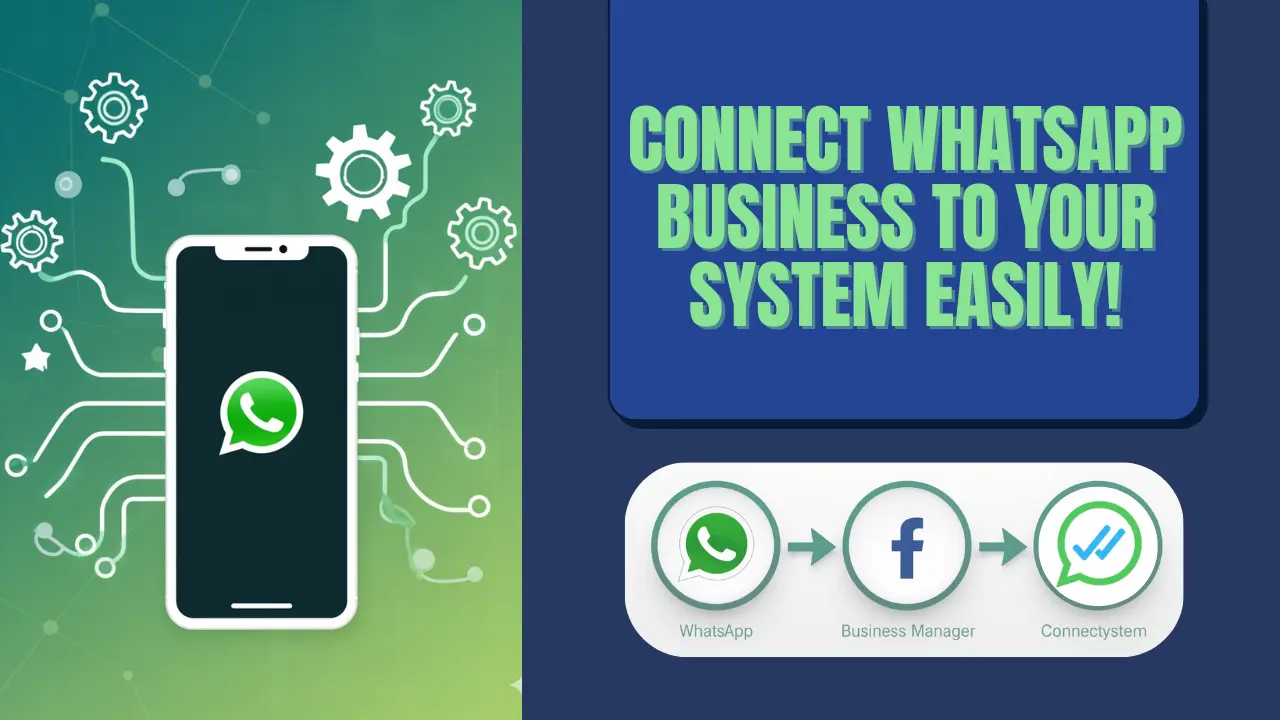
Before you can send any WhatsApp message through WhatsAble's Notifyer System, you need to connect a phone number. This is the foundational step — everything else, from bulk messaging to automated follow-ups to AI chatbots, only works once your number is live.
The good news is that you have two options depending on your situation: connect your existing WhatsApp Business number and keep using it on your phone as normal, or skip the phone number setup entirely and send through WhatsAble's own bot.
This guide walks you through both paths so you can get set up correctly from the start and avoid the most common mistakes that lead to account blocks or failed verification.
What You'll Be Able to Do After This
- Send WhatsApp messages from your own branded number — contacts see your business name, not an unknown bot
- Keep using WhatsApp Business App on your phone at the same time as Notifyer System
- Run automated campaigns, sequences, and AI chatbots through your own number
- Or skip all of this and use WhatsAble's Notifier Bot for a simpler, faster setup
Why This Setup Matters
Most businesses that get blocked or have trouble sending messages on WhatsApp make one of two mistakes during setup: they skip the business verification step, or they don't set up their payment method as the default. Both problems are entirely preventable.
Business verification is not optional for sending. You can receive messages on an unverified account, but Meta will restrict outgoing messages until your business information is complete. This catches a lot of new users off guard — they set everything up, try to send a message, and nothing goes out.
Your display name is permanent and highly visible. Every WhatsApp message you send will show your business display name. If you set it as something generic or misspelled during setup, that's what your customers will see until you request a name change through Meta — which takes time and approval.
Country availability affects which path is open to you. The WhatsApp Business App connection (using your existing phone number) is only available in certain countries. If your country isn't supported, Path B — the Notifier Bot — is your starting point.
🎥 Watch the Full Video Walkthrough
Watch the full setup in real time above, or follow the written steps below — both cover the complete connection process.
Two Ways to Get Started: Which One Is Right for You?
WhatsAble gives you two distinct ways to connect a number. Understanding the difference upfront saves a lot of confusion.
Path A — Connect your own WhatsApp Business number: Messages are sent from your number, your business name appears on every message, and customers can reply directly to your WhatsApp. This requires a Facebook Business Portfolio and business verification with Meta. Only available in eligible countries.
Path B — Use the Notifier Bot: Messages are sent from WhatsAble's bot number. Your business name still appears in the message body, but the sender is WhatsAble's verified account. No Facebook setup required, no verification process, and works in all countries where WhatsApp is available.
Both options use the official WhatsApp Business API. The difference is branding and setup complexity.
Path A: Connect Your Own WhatsApp Business Number
Step 1: Check Country Eligibility
Before starting, confirm that connecting a WhatsApp Business App number is available in your country. WhatsAble maintains an updated list of eligible countries — check the description of the setup video or the regional availability section on whatsable.app for the current list.
If your country isn't listed, skip to Path B. You can always migrate to your own number later if your country becomes eligible.
Step 2: Access the Connection Screen in WhatsAble
Log in to your Notifyer System account at console.notifyer-systems.com. Navigate to the onboarding or settings section and locate Step 2: Connect Your WhatsApp Number.
Click Get Started to begin the Meta connection flow. This will open a guided setup within WhatsAble that connects to your Facebook and WhatsApp Business accounts.
Step 3: Set Up Your Facebook Business Portfolio
WhatsApp Business API requires a Facebook Business Portfolio (also called a Meta Business Account). If you already have one from running Facebook or Instagram ads, you can use the same account. If not, you'll be prompted to create one during this step — it only takes a few minutes.
A few things to keep in mind for your Business Portfolio:
- Use your real business name, not a personal name. This is tied to your WhatsApp sender identity.
- Make sure you have admin access to the portfolio. If someone else manages your Facebook ads, they may need to add you as an admin before you can proceed.
- If you have multiple portfolios, select the one that matches the business you're setting up WhatsApp for.
Step 4: Choose Your Phone Number Type
After connecting your Business Portfolio, you'll see two options:
Option 1 — Connect your existing WhatsApp Business App number: If you already use WhatsApp Business on your phone and want to keep using it while also using Notifyer System, select this option. You'll receive a verification code on your phone to confirm ownership. This is the most common setup for existing businesses.
Option 2 — Connect a new phone number: If you don't have an existing WhatsApp Business number, or if you want a dedicated number just for automated messaging, you can use a new SIM card or a Twilio number. You only need the SIM card to receive the one-time verification code — you don't need to keep it active after setup.
Important: If you're connecting a number that was previously used on regular WhatsApp (not WhatsApp Business), you'll need to migrate it first. Meta will walk you through this during the connection process.
Step 5: Set Your WhatsApp Business Display Name
This is the most important field in the entire setup. Your display name is what appears to everyone who receives a WhatsApp message from you. It shows up in the chat header and in message previews.
Choose your display name carefully:
- Use your actual business name, exactly as you want customers to see it
- Avoid generic names like "Sales Team" or "Support" — use your brand name
- Match it to what you told Meta your business is — inconsistencies can cause account review delays
- You cannot change this name quickly after setup. A name change requires Meta approval and can take days
Once you submit your display name, complete the phone number verification by choosing your preferred method (SMS or phone call) and entering the code you receive.
Step 6: Set Up Your Payment Method
WhatsApp Business API messages have a cost associated with them (charged by Meta, not WhatsAble). You need to add a payment method to your Meta Business account to cover these conversation charges.
After adding your card:
- Go to your payment settings in Meta Business Manager
- Find the payment method you just added
- Click the three dots next to it
- Select Set as Default
This step is easy to miss, but it's critical. If your payment method is not set as default, Meta will not process outgoing messages even if your number is connected and verified. Many users skip this and then wonder why their messages aren't sending.
If you already have a payment method on file from your Facebook ad account, you can use the same card and set it as default without re-entering details.
Step 7: Complete Business Verification
The final step before you can send messages is business verification. Inside Meta Business Manager, locate the Start Verification button and complete the business information form.
You'll be asked to provide:
- Business name and address
- Business website URL (this must be live and professional — see our guide on why WhatsApp blocks business accounts for website requirements)
- Business category and description
- Contact details
This is not optional. Without completing verification, your account can receive incoming messages but cannot send outgoing messages. Meta uses this information to confirm you're a legitimate business before granting sending permissions.
Once submitted, verification typically processes within a few hours. In some cases it can take up to 24 hours. You'll receive a notification in Business Manager when your account is approved.
After approval, your number is live and you can start sending messages through Notifyer System.
Path B: Use the WhatsAble Notifier Bot (Simpler Option)
If Path A feels like too many steps, or if your country isn't eligible for WhatsApp Business App connection, the Notifier Bot is the faster alternative.
With this setup:
- Messages are sent from WhatsAble's verified bot number
- Your business name still appears in the message, so recipients know it's from you
- No Facebook Business Portfolio required
- No Meta business verification required
- Works in all countries where WhatsApp is available
- Setup takes about 6 minutes
The tradeoff is that replies from customers go to their WhatsApp, not directly to your business number. You also won't have the team inbox, mobile app, or some of the advanced Notifyer System features that require your own WABA number.
To get started with the Notifier Bot, sign up at notifier.whatsable.app/sign-up. The onboarding walks you through connecting Zapier, Make, or n8n in a few minutes — no Facebook steps involved.
Which Path Should You Choose?
Choose Path A (your own number) if:
- You want messages to show your brand number, not an external bot
- You need the team inbox, mobile app, or advanced features like AI chatbots and sequences
- Your country is in the eligible list
- You're ready to spend 15–20 minutes on initial setup
Choose Path B (Notifier Bot) if:
- You want to get started quickly without any Facebook setup
- Your country is not in the eligible list for WhatsApp Business App connection
- You're testing the platform before committing to a full WABA setup
- Your use case is relatively simple (notifications, basic automation)
You can start on Path B and migrate to your own number later. Your contacts and conversation history don't transfer automatically, but your Zapier/Make/n8n automations will work with both setups with minor adjustments.
Common Setup Issues and How to Fix Them
"I connected my number but can't send messages."Almost always a verification issue. Go to Meta Business Manager, check your business verification status, and make sure you've clicked Start Verification and filled in all business information fields. Also confirm your payment method is set as default.
"My verification code never arrived."Try switching from SMS to phone call verification (or vice versa). Make sure your phone has signal and can receive international calls if you're using a new number. If the issue persists, wait 10 minutes before requesting a new code — Meta rate-limits verification attempts.
"I don't have a Facebook Business Portfolio."You can create one during the setup flow. It's free and only requires a Facebook account. You don't need to run ads or have a Facebook Page to create a Business Portfolio.
"My country isn't on the eligible list."Use Path B (Notifier Bot) for now. WhatsAble is actively expanding country coverage, so check back periodically if you specifically need your own branded number.
"I set up everything but Meta says my account is under review."This is normal for new accounts. Meta reviews new WhatsApp Business API connections before fully enabling sending. This typically resolves within 24–48 hours. If it takes longer, contact team@whatsable.app for assistance.
Frequently Asked Questions
Q: Can I keep using the WhatsApp Business App on my phone after connecting to Notifyer System?A: Yes. This is one of the key features of the WhatsApp Business App connection. You can continue managing conversations directly on your phone while also running automations through Notifyer System simultaneously.
Q: Do I need a separate phone number to use Notifyer System?A: Not necessarily. If you already use WhatsApp Business, you can connect that same number. If you want a dedicated number for automated messaging, you'll need a new SIM card or a Twilio number — but you only need the SIM briefly for the verification code.
Q: What does the WhatsApp Business API actually cost?A: Meta charges per conversation, not per message. Pricing varies by country and conversation type (marketing, utility, service). These costs are separate from your WhatsAble subscription. You can find current pricing on Meta's official WhatsApp Business pricing page.
Q: What if I already have a number connected to another WhatsApp solution provider?A: You can migrate it to WhatsAble. The process involves disconnecting from your current provider and reconnecting through WhatsAble. Your number remains the same — it's the business API connection that changes. Contact team@whatsable.app before attempting a migration for guidance on preserving your account health during the switch.
Q: Is the Notifier Bot the same as Notifyer System?A: No — these are two separate products. Notifier Bot is the simpler tool that sends from WhatsAble's number, starts at $29/month, and has a 6-minute setup. Notifyer System is the full platform that uses your own number, includes team inbox, mobile apps, AI chatbots, sequences, and Pipedrive integration, starting at $49/month. See the full comparison at whatsable.app.
Q: Can I use a Twilio number instead of a physical SIM card?A: Yes. Notifyer System supports Twilio numbers. If you're setting up a number specifically for automated messaging and don't want to deal with a physical SIM, Twilio is a clean alternative. The connection process is the same.
Q: What happens if my account gets blocked during or after setup?A: See our dedicated guide on why WhatsApp blocks business accounts and how to fix it. The most common causes during setup are missing business verification, an unfinished website, or too many connection attempts in a short period.
Conclusion
Connecting your WhatsApp number is the first real step to building any automation on WhatsAble. The process is straightforward once you know which path to take, but it's easy to get stuck if you skip the verification step or don't set your payment method as default.
If you're in an eligible country and want full branding control, Path A takes about 15–20 minutes and gives you the most powerful setup. If you want to get running in 6 minutes without any Facebook steps, the Notifier Bot gets you to the same automations with less initial setup.
Either way, once your number is connected, every other WhatsAble feature — scheduling, sequences, AI chatbots, team inbox, analytics — is ready to use.
Key Takeaways
- Check country eligibility before starting Path A — not all countries support WhatsApp Business App connection
- Your display name is permanent and visible on every message — choose it carefully
- Business verification is required to send messages, not just receive them
- Set your payment method as default in Meta Business Manager or outgoing messages won't process
- If Path A is too complex or unavailable in your country, the Notifier Bot is a fully functional alternative
Get Started
- Sign up for WhatsAble Notifyer System or Notifier Bot depending on your path
- Check country eligibility in the regional availability section at whatsable.app
- Prepare your Facebook Business Portfolio admin access before starting Path A
- Complete business verification immediately — don't skip this step
- Questions during setup? Reach out at team@whatsable.app — support is included with your subscription
Last Updated: February 2026 | Contact Support | WhatsAble Documentation
SEO Keywords: #ConnectWhatsAppBusiness #WhatsAppBusinessAPI #NotifyerSystem #WhatsAbleSetup #WhatsAppAutomation #MetaBusinessVerification #WhatsAppBusinessApp #WABASetup #WhatsAppOnboarding #WhatsAbleNotifyer